Sunday, January 1, 2012

VPN - on Mac - Fix error 51


Fix an error 51 with the Cisco VPN Client

One of the most-used programs on my Mac is the Cisco VPN Client, which is what I use to connect to Macworld’s VPN when posting articles such as this one. (OS X’s built-in VPN client also works, but it also logs me out of and then back into iChat every time I connect or disconnect from the VPN. The Cisco VPN Client doesn’t have this annoying problem, so I use it instead.)
While the Cisco VPN Client works well most of the time, sometimes when I try to launch the application, I’m greeted with this error message in place of the usual connection dialog:
Error 51: Unable to communicate with the VPN subsystem. Please make sure that you have at least one network interface that is currently active and has an IP address and start this application again.
The error is clearly incorrect, because my machine’s networking capabilities are otherwise fine—I can browse the net, send and receive e-mail, and connect to other machines in the house. I don’t get the error message all the time, and I don’t really know what causes it. It does seem to happen more often if I’ve slept and woke the machine, or moved it from one defined location to another, but even then, it’s not predictable. All I know for sure is that it’s annoying, because (until recently) the only fix I was aware of was to reboot the machine.
One day, after probably the second or third time I’d restarted my machine, I decided there must be a better solution, so I went digging to see if anyone else had already found one—and they had. As detailed on the linked site, the solution is a relatively simple command that you execute in Terminal (found in Applications -> Utilities). After discussing the Terminal command with a friend, he came up with an even simpler version that works just as well:
sudo SystemStarter restart CiscoVPN You’ll need to be an administrative user to run this command, and provide your admin password when asked. You won’t see any output from the command; the Terminal prompt will return when it’s done. After using the above command, the Cisco VPN Client should run without any problems—at least until the next time the problem occurs.

Wednesday, December 14, 2011

Gmail prints too small - how to fix

Help forum > Gmail > Managing Settings and Mail > How do I modify font size for printing of messages ?

How do I modify font size for printing of messages ? Report abuse

boblite
Level 2
6/19/09
When I print Gmail messages the font size is way too small, and I can't find a way to modify the font size. How do I do this ?

Best answers

boblite
Level 2
6/21/09
Popular answer Go to this answer
Finally a definitive fix.  I visited the Firefox Mozilla forum and said I was having no difficulty printing Gmail e-mails in the Internet Explorer environment, but that font size was way too small when printing Gmails in Firefox.  A Mozilla moderator named Dan Raisch responded with a fix that works, as follows:  In the Firefox environment, check File->Page Setup->Scale. It should be set to 100% or thereabouts (adjust to your preferred size). Is "Shrink to fit page width" selected? If it is, un-select that option."  

Friday, December 2, 2011


Transfer Photos from iPhone to computer


Jul 10, 2010 - 113 Comments
transfer photos from iphone
You can easily transfer Photos from your iPhone to your computer, the process is very similar whether you are on a Mac or PC. Regardless of what OS you are using, you’ll need your iPhone, the included USB cable, and a computer to plug it into.

Transfer Photos from iPhone to Mac

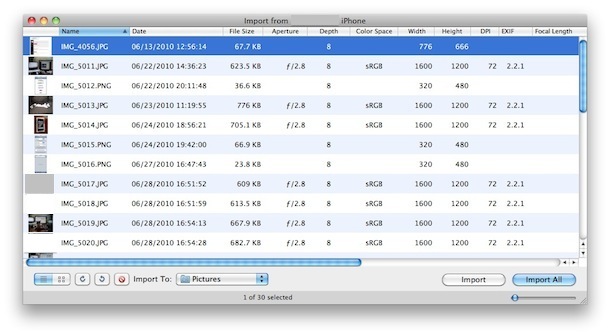
The easiest way to transfer pictures from your iPhone to your Mac is through Preview
  • Plug your iPhone into your Mac
  • Launch Preview
  • From the File menu navigate down and select “Import from iPhone…”
  • Select “Import All” to get all the pictures, otherwise individually select pictures and click ‘Import’
  • Look in your ~/Pictures/ folder for the photos from your iPhone
You can also transfer pictures to your Mac with iPhoto or Image Capture, which is just as easy.

Transfer Photos from iPhone to PC

On a Windows PC the easiest way to get pictures from your iPhone is to just use Windows Explorer, but there’s two ways to go about this:
  • Plugin your iPhone to the computer without iTunes running
  • Wait for a popup asking you what you want to do with the device
  • Select “View Content”
  • Find your photos through the folders that are displayed
  • Copy in Windows as usual
If your iPhone is already plugged into your PC, you can try this method:
  • Plugin your iPhone to your PC
  • Open “My Computer”
  • Find your iPhone, it will appear as any other camera would
  • Open iPhone to find your Photos
  • Select the pictures you want to copy to your computer and copy/paste them into the desired location on your PC
The Windows approach treats the iPhone more like a file system, but if you feel like it you can also use your favorite photo importing application to pull the pictures from the device as well.
You can also sync your photos using just iTunes on either Mac OS or Windows but that is more for iPhone backup purposes.


Monday, October 17, 2011

Re-bootong win7 using Remote desktop

Sean’s Stuff

17 January, 2009

How to Reboot Machine While Connected Through Remote Desktop

Filed under: Windows — Sean @ 4:24 pm
Tags: ,
I assume that everyone who uses Remote Desktop in Windows knows this already, but just in case…
I use Remote Desktop all the time to connect back to one or more machines on my home network.  I have a single static IP address and then have terminal server running on every box behind the router on a different port.  So I can connect to any of my machines remotely, by using a different port.
Being able to remote connect to any/all of my machines is huge.  I consider Remote Desktop to be one of the most critical tools that I use on a daily basis.
But  I occasionally find that there is something funky on one of my home machines that leads to my wanting to reboot it.  For example, I sometimes run into a situation where I can’t connect to the machine from outside my network, but I can still remote from a different machine in my home network.  So I remote to the “visible” machine, then remote over to the “invisible” machine.  Rebooting the problem machine seems to fix the problem.
The problem with rebooting is that the Shutdown and Restart options are removed from the Start Menu when you’re connected using Remote Desktop.
But not to worry–you can still reboot the machine, just using the command prompt.  Here’s the magic command (Windows 7, Vista or Windows XP):
shutdown -t 0 -r -f
That’s a “zero” after the -t option, indicating shutdown in zero seconds.  The -r option indicates a restart, rather than shutdown.  (Don’t forget this one)!  The -f option forces all applications to terminate.
So this is a critical command, worth remembering!